
How to Master SFM Compile
Source Filmmaker (SFM) is a powerful, free-to-use movie-making tool developed by Valve that allows users to create cinematic animations using assets from Source engine games. Whether you are making fan animations, creating machinima, or designing custom game content, understanding the SFM compile process is absolutely crucial. Without compiling your models correctly, they will not load into the software, or they may appear as purple-and-black checkerboard patterns due to missing textures.
Whether you are a beginner looking to import your first custom character or an experienced animator optimizing complex scenes, understanding how the SFM compile workflow operates is essential. This guide breaks down everything you need to know about compiling models for Source Filmmaker, from the essential tools to troubleshooting common errors.
What is the SFM Compile Process?
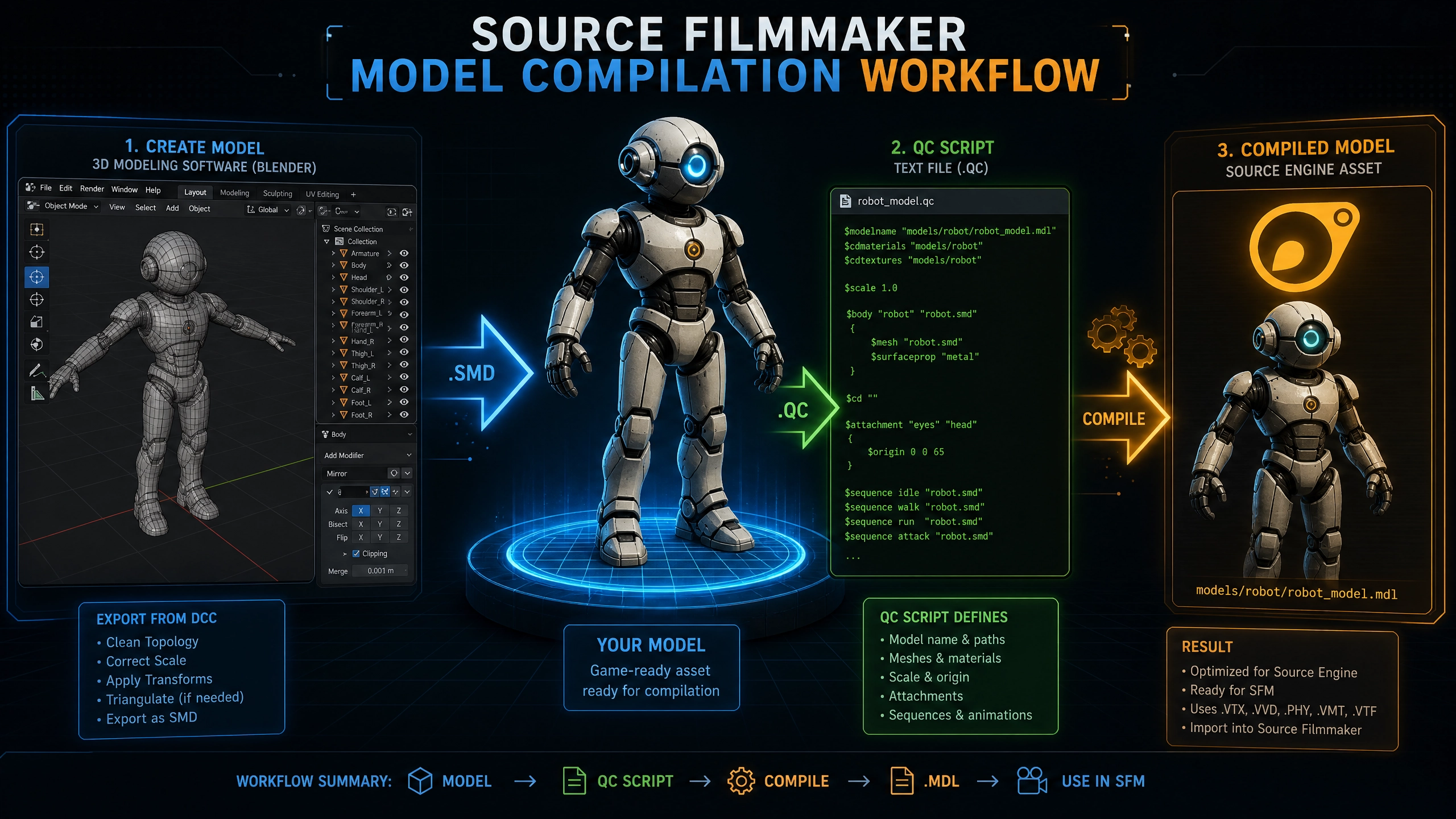
The Source engine does not read standard 3D model formats like OBJ, FBX, or Maya files directly. Instead, it relies on a proprietary binary format known as the .mdl (model) file. The SFM compile process is the bridge that converts your raw 3D assets—including meshes, textures, bone structures, and physics data—into a single, engine-compatible package .
When you compile a model, you are essentially packaging all the necessary components so that Source Filmmaker can read, render, and animate the object correctly. This process requires three main components:
1.Source Files: The raw data exported from your 3D modeling software (typically .smd or .dmx files).
2.A QC Script: A text file containing specific commands that tell the compiler how to process the source files.
3.A Compiler Tool: The software that reads the QC script and generates the final .mdl file.
Essential Tools for Model Compilation
To successfully perform an SFM compile, you need the right software stack. The good news is that most of these tools are either free or open-source.
1. Studiomdl.exe
This is the official command-line tool developed by Valve. It is the core engine behind all Source model compilation. While it is incredibly powerful and highly customizable, it requires users to type commands directly into a terminal or command prompt, which can be intimidating for beginners. It resides within your SFM installation folder, specifically in the bin directory.
2. Crowbar
Crowbar is widely considered the best graphical frontend for the Source engine’s compilation tools. It simplifies the process by providing a user-friendly interface where you can select your QC file, choose your game settings, and click a “Compile” button. It also includes a robust decompiler, allowing you to extract assets from existing SFM models for modification .
3. Blender and Source Tools
Blender is the most popular 3D creation software in the SFM community due to its free price tag and massive feature set. To export your models correctly, you must install the Blender Source Tools add-on. This plugin allows you to export your meshes and animations directly into the .smd or .dmx formats required by the compiler.
4. Text Editors
Writing a QC file requires a standard text editor. While you can use Windows Notepad, tools like Notepad++ or Visual Studio Code are highly recommended because they support syntax highlighting. This makes it much easier to spot errors in your QC scripts and keeps your formatting clean.
5. VTFEdit
Textures for Source Filmmaker must be in VTF format, accompanied by a VMT material file. VTFEdit is a free tool that allows you to convert standard PNG or JPEG images into the formats required by the engine.
The Step-by-Step SFM Compile Workflow
Compiling a model can seem complex at first, but breaking it down into a step-by-step process makes it manageable for any creator.
Step 1: Asset Preparation
Before compiling, ensure your 3D model is ready. Keep polygon counts reasonable (under 60,000 triangles is a good rule of thumb for performance). Rig your character using standard bone conventions, and unwrap your textures. It is also vital to ensure your model is centered perfectly on the X, Y, and Z axes to avoid bounding box errors.
Step 2: Exporting from Blender
Using the Blender Source Tools, export your reference mesh (the visual model), your collision mesh (for physics), and your animations as separate .smd files. Also, export your textures as images and use a tool like VTFEdit to convert them into VTF/VMT formats if necessary.
Step 3: Writing the QC Script
The QC file is the instruction manual for the compiler. It uses specific commands to tell studiomdl what to do. Here is a basic example of a QC file structure:
Plain Text
$modelname “my_custom_model.mdl” $body studio “model.smd” $cdmaterials “models/my_custom_model” $surfaceprop metal $sequence idle “animation.smd” fps 30 $collisionmodel “collision.smd” { $concave }
The $modelname command sets the output file path. The $body command points to your main mesh, and $cdmaterials tells the engine where to find your textures.
Step 4: Running the Compiler
If you are using Crowbar, simply open the program, navigate to the “Compile” tab, locate your QC file, and click “Compile.” The tool will process the files and output a log message. If you are using the command line, you will run a batch command like:”C:\Program Files (x86)\Steam\steamapps\common\SourceFilmmaker\game\bin\studiomdl.exe” -nop4 my_custom_model.qc
Step 5: Verification
Once the process finishes, launch Source Filmmaker. Check the asset browser to see if your model appears. Drag it into a scene to verify that the textures are loading correctly and that the animations play smoothly.
Common SFM Compile Errors and Troubleshooting
Even with careful preparation, compilation can fail. Understanding common errors will save you hours of frustration.
| Error Message / Symptom | Cause | Solution |
| Purple and Black Checkerboard | Missing or incorrectly referenced textures. | Verify the $cdmaterials path in your QC file matches your directory structure exactly. |
| Model is Invisible in Viewport | Scaling or bounding box errors. | Ensure your model is centered on the X, Y, and Z axes before exporting. |
| “Error opening .mdl” | Permission or path issues. | Run your compiler tool (like Crowbar) as an administrator. |
| Broken Bone Weights | Improper rigging during modeling. | Re-export your SMD files from Blender and check vertex weights. |
| Bounding Box Out of Range | Collision model is too large. | Scale down your collision mesh or simplify its geometry. |
Best Practices for Efficient Compilation
To make your SFM compile workflow as smooth as possible, follow these industry tips:
•Organize Your Folders: Keep your QC files, SMD files, and textures in a dedicated folder for each project. Path errors are the number one cause of failed compilations.
•Start Simple: When learning, compile a simple static object (like a crate or a rock) before attempting a fully rigged character.
•Use Comments in QC Files: You can add comments to your QC scripts by starting a line with //. This helps you remember what specific commands do when you revisit a project months later.
•Study Existing Models: Use Crowbar to decompile official Valve models. Examining how professionals write their QC files is one of the fastest ways to learn advanced techniques.
•Batch Processing: If you have a large number of models to compile, utilize Crowbar’s batch processing features or write a simple batch script to compile multiple QC files sequentially.
Advanced SFM Compile Techniques
Once you have mastered the basics, you can begin to explore more advanced compilation techniques to take your projects to the next level.
Level of Detail (LOD)
LOD models are simplified versions of your main model that load at a distance to improve performance. By adding $lod commands to your QC file, you can instruct the engine to swap out your high-poly model for a lower-poly version when the camera moves away. This is especially useful for complex scenes with multiple characters, ensuring smooth framerates.
Facial Flexes and Morphs
If you are compiling a character model, you will likely want to support facial animation. Facial flexes allow for detailed expressions like smiling, frowning, or blinking. To implement these, you must export your flex animations as .vta files and include $flexfile and $flex commands in your QC script.
Custom Physics Properties
By using the $surfaceprop command in your QC file, you can define how your model interacts physically with the environment. You can make a model behave like metal, wood, or rubber, which is crucial for accurate collision and sound effects within Source Filmmaker.
Conclusion
The SFM compile process is a fundamental skill for anyone wanting to create custom content for Source Filmmaker. By mastering tools like Crowbar, understanding the structure of QC scripts, and following a strict organizational workflow, you can seamlessly bring your 3D creations into the Source engine. Don’t let technical hurdles stop your creativity; with practice, compiling models will become a routine part of your animation pipeline.